Showing posts with label Great Softwares. Show all posts

August 22, 2011

Introducing YTWatcher!

What is YTWatcher?

YTWatcher is a desktop application that allows you to watch your subscribed YouTube videos or favorite/liked YouTube videos in back-to-back manner (Think of it as a Giant virtual Playlist where Application will start next video once current video finishes playing). YTWatcher also keeps track of watched videos from your subscriptions and plays only unwatched videos latest one first. So, you never miss a new video from your friend / company you have subscribed to!

Just download the ZIP file above and extract two executable out of it into the same folder. No other setup is required. Launch YTWatcher.exe to run the program. Please go through Pre-requisites section below in order to make sure machine is capable.



Why use YTWatcher?

One may have question, if YouTube already allows you to watch videos from your subscription, why use desktop application?

  • YouTube subscriptions page has limit of 100 videos, which follows FIFO. So, Say for an example, you have 100 new subscription videos and If you get 5 new videos on top of it, you will lose the first 5. I personally don’t like it and that’s what motivated me to write something like this. I have subscribed to some of my important friends, people and companies I track and if I don’t watch videos till it reaches 100 count, I will surely lose some videos from the list.
  • YouTube does not allow to watch all subscription videos in back to back manner. You have to open one video, after it finishes, go back to your subscription list and play next. Though, there is option to add all the videos in a playlist and play the playlist, but I don’t like that either. Managing playlist (creating initially, deleting once its watched) is just too much overhead.

Features?

image

    • Don’t lose subscription videos anymore! YTWatcher fetches new video token from your subscription list and keeps them in locally stored file (Please Note, it does not download videos, just fetches information about video). So, even if new videos from your subscription overwrites older videos, application will play them from local cache.
    • YTWatcher plays all videos in back to back manner (Continuous mode) where it will play next video as the currently playing video finishes playing.
    • YTWatcher allows you to skip video (while marking the video as watched) if you wish.
    • YTWatcher can be resized per user preference and will stay on top. So, if user wants to keep watching videos while doing some other work, its possible (Plus, you don’t get related videos/comments crap – just pure video view)
    • Automatic seeking! YTWatcher records duration up to which user has watched the video if they exit the application while video is playing. So, next time when YTWatcher starts playing the video, it will start from that point only.
    • YTWatcher allows you to “Change User”. So, if user wants, they can make application show you subscription videos from different Google Account!
    • Automatic Login. YTWatcher keeps the YouTube connection information on your disk in encoded format. So, you don’t have to login every time you run the application. Second time and onwards (once you login successfully), just launch YTWatcher and it will start playing your unwatched videos!
    • Facebook Integration. You can share currently playing video with your friends on Facebook.
    • Twitter Integration. You can share currently playing video with the world through Twitter! 
    • Theater Mode. YTWatcher allows full screen view where all you see is just video (not even application title bar/menu/statusbar). Ideal for watching on TV or secondary monitor.
    • Ability to watch both Subscribed and Favorite videos from your YouTube account.
    • Ability to view the queue and re-order the videos in queue.
    • Advertisements free Video watching! Though this was not the objective of the application, currently YouTube does not show Advertisements in the method that’s used by application. (Note, Video Ads are not shown but still banner ads will popup at the bottom of the video!) 
    • Last but not the least, YTWatcher is updated automatically. You don’t even have to check for updates, it will just make sure you always have latest version.

Menus/Options?

1) Video Menu:

image

Video Menu contains options related to the video being played currently by the application. You can toggle the Play, skip the currently playing video if you don’t wish to watch it completely. Full screen will play the video in full screen mode (I like to call it Theater mode!). There are few share buttons which lets you share the video you are watching with Facebook or Twitter friends (Waiting for Google+ APIs in order to add that integration)! Change order will pop-up a dialog which will let you change the order in which videos will be played. I’ve listed a populated dialog from my subscriptions below. In order to change the order, all you gotta do is drag and drop the video to some other position and click on Apply! This dialog also contains filter/search capability to find the videos you are looking for quickly!

image

2) Help Menu:

image

Help menu contains option to open Frequently Asked Questions and About dialog. Note that application automatically updates itself so, you don’t have to check for updates.


3) Status Bar:

image

There are few Menus/Options in the status bar as well. Ability to switch the mode from Subscriptions to Favorite and v/s is only in the status bar (you can also hit shortcut keys to change the mode). You can play/pause the video from the button in the status bar. Also, there is an option to change volume of currently playing video with just one click!


4) Change User:

Menu called “Change User” in the menu bar lets you login using different YouTube account. (Please note that it will erase current video playback history for current user).

Pre-requisites?

    • Client Operating System (Windows 7, Windows Vista & Windows XP). Please note, Windows Server 2008 (or R2) is not supported yet. This is mostly because of tightened security around what IE can load.
    • .NET Framework 4.0 installed.
    • Make sure you can play YouTube videos from Internet Explorer (make sure, Flash Player is installed).

How do I report bug or make a feature request?

    • Please leave a comment on this blog post for any feedback you may have.

May 16, 2011

TeamViewer - Best FREE Utility on Windows to operate remote machine connected to Internet!

If you are like me, who has to support friends and relatives every now and then, You’d love to have TeamViewer in your toolbox!

TeamViewer connects to any machine around the world within a few seconds. You can remote control your partner's PC as if you were sitting right in front of it. Detailed feature list on its website here.

Best part about TeamViewer is its speed. I’ve used numerous applications that lets you connect to your machines remotely but they’re either slow or have frequent disconnection/hang issues. With teamviewer, I’ve always found the experience smooth, even on machines with flaky internet! All you need to do is, install TeamViewer on all the machines that you want to manage remotely (enable password protected automatic remote access and add it to your partner list) and that’s about it. Next time you wish to connect to the machine, you just double click the machine from Partner list and provide the password, boom!

I personally love it so much that its one of the first utilities I install on any paved machine.

TeamViewer window in action! Download it here.

image

NOTE: Free license is only provided with the condition you will use it only for Non-Commercial use. If you plan to use it for business/work purpose, you have to buy it. Also, it does not allow personal use on Server Operating Systems (e.g. Windows Server 2003 or Windows Server 2008!)

Enjoy!

May 4, 2011

The best File Search utility on Windows, Seriously just try it out once!

Today’s post in the Great Software series is probably the best ones (Though I feel that way whenever I write in that series! Smile) Anyways, it saves a few minutes every single day for me both at work and at home. Let me Introduce you to “Everything”. The name does not attract you much until you try it once. It is a file search engine for windows. When you hear about File Search Engine, you start thinking about hours of indexing and huge index files, even after all that a few seconds before it returns you the results. Everything (aka Search Everything) breaks the traditional thinking and performs at its best. I’ve used bunch of file search utilities in past few years but nobody beats Everything, not even comes closer.
Some of the features of this tool,

  • Small installation file
    • So small, the search engine is Portable. No installation!! Just run the EXE and start searching in couple of seconds.
  • Clean and simple user interface
    • They’ve done a very good job at keeping the UI so simple, even my mom can figure it out. All the UI element it has is, a search box (Edit box) and Search Results Pane. That’s it!!
  • Quick file indexing
    • Its blazing fast! I’ve never seen anything so fast.. Not even Google Desktop! From its FAQ it says, it can index 20,000 files in 1 second. Isn’t that amazing? You blink and it’s already indexed 20 thousand files. Just love the speed. This speed also gives users ability to open it only when needed. Unlike Google Desktop or any other search engine which you have to keep running all the time!
  • Quick searching
    • This is what Everything is best at, Searching, period. You type something and before even you start expecting results, they’re already there. The search querying is also very powerful (it even supports Regular Expression in the file search, isn’t that amazing!)
  • Minimal resource usage
    • When I tried the first time, I let it index my entire hard drive and tried to see where it writes the index using ProcMon tool, when I looked at the database it creates, I was stunned by its size. For my entire hard drive (maybe around a million files) the index’s size was just couple of MBs! Just pure awesomeness!
  • Real-time updating
    • If you keep the tool running (it has really very very small footprint, you will not even notice it even on the slowest machine!), the tool monitors the file system changes. So, any new files created on the disk, are already in the index. Every search you make reflects the real-time changes. Isn’t that awesome?

I’m highly impressed by this tool. Best of all? It is absolutely free. I think it’s one of the best free stuff I’ve seen. After using for a month though, I started leaning towards donating to developers. Seriously, its that useful!

Here is the screenshot of Everything in action!

image

Download it here!

Enjoy!

April 25, 2011

Ever wanted to paste what you copied 3 days ago? Get Ditto-cp best clipboard manager!

Have you ever wanted to paste something you copied before restarting your machine or say you copied before couple of days? For me, I rely heavily on clipboard. It’s probably the most frequently used feature on my machines, but Windows in-built clipboard is very limited. What I mean by saying that is, it remembers only what you copied the most recently. It happens to me a lot that I copied a string or a URL before some time that I want to paste again. With windows clipboard its not possible. Its worth mentioning that Office and Visual Studio implemented such functionality but they collect copied content only from inside their application. Its not windows wide. There comes Ditto-cp.

From their website, Ditto Clipboard Manager is,

Ditto is an extension to the standard windows clipboard. It saves each item placed on the clipboard allowing you access to any of those items at a later time. Ditto allows you to save any type of information that can be put on the clipboard, text, images, html, custom formats, .....

  • Easy to use interface
  • Search and paste previous copy entries
  • Keep multiple computer's clipboards in sync
  • Data is encrypted when sent over the network
  • Accessed from tray icon or global hot key
  • Select entry by double click, enter key or drag drop
  • Paste into any window that excepts standard copy/paste entries
  • Display thumbnail of copied images in list
  • Full Unicode support(display foreign characters)
  • UTF-8 support for language files(create language files in any language)
  • Uses sqlite database (www.sqlite.org)

The way it works is, the tool keeps running in the background and keeps collecting all kinds of copied content in a SQLite database. When you hit a HotKey (I always configure Ctrl + Shift + V), a small window which looks something like following pops up where you can search for past copied content using keywords. For example, If I remember, the link I copied before 4 days was from amazon, I can click in the editbox at the bottom of Ditto window and type “amazon.com”, and ditto filters the content of top list with words amazon.com within it. From the filtered list, I can see what I want in my clipboard and just double click on the line I am interested in. What that will do is copy that content to current clipboard. That’s it, I can paste it to whatever application I want because my clipboard now contains that URL.

Screenshot

Try it out and let me know how you like it. Its one of the first tools I always install after getting a new machine. Can’t live without it. If you know any other better tool for this, leave a comment. The most important feature request for an ideal Ditto like software is, web-syncing so, content copied on one machine shows up on another machine too (magically). Of course, privacy is big issue when it goes to “Internet”!

Enjoy!

January 10, 2011

Best way to view and edit XML files

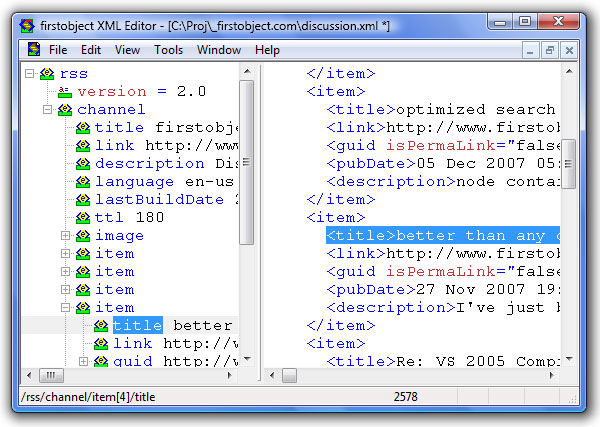
I have been using FirstObject XML Editor from quite some time and thought of sharing it here. Few of its features which I like the most are,

  • FirstObject XML editor is free for download
  • Its very fast in loading (even huge files). This is what I like the most about it.
  • It has syntax highlighting
  • It has ability to view XML data in tree
  • Change fonts
  • It does not depend on MSXML or Java so, no dependency.
  • Very small footprint
  • Portable

free XML editor and RSS

Download the tool from here

December 27, 2010

How to view files inside MSI and extract them

Recently, I had an MSI file that I wanted to crack open to see what are the contents of it because I wanted to check some files out even before running the MSI (before doing installation). There may be other ways to do this, but I found this slick way to do this and thought of sharing it here.

We can use the tool called Less MSI to do this very easily. Following is a snippet from the project home page to give an idea about the tool. You can download the tool from here for free.

Features

Windows Explorer Integration

Lessmsi also integrates with Windows Explorer so that you can right-click on a Windows Installer file (.msi file) and select "Extract Files" to extract it into a folder right there:

Just select Preferences from the Edit menu to enable (or disable) the explorer integration:

GUI

In addition to allowing you to extract files from the command line and from inside Windows Explorer, lessmsi has a graphical user interface that allows you to view detailed information about any MSI file.

MSI Table Viewer

Windows Installer (.msi files) are based on an internal database of tables. Lessmsi features a viewer for those tables. Useful for people who work a lot with installers.

July 10, 2010

How to watch YouTube videos in VLC Player

I love VLC Player. Its simple yet powerful and it can do many things that other media players cant do still its very quick. One of the VLC Player’s hidden gem is that it allows streaming of Youtube videos. That means you can watch YouTube videos without downloading them fully and skip any advertisements that new YouTube shows when you watch the thing on YouTube site.

The reason one would like to use VLC Player to watch YouTube videos is because you get benefit of VLC player like,

  • Adjusting audio/video delay
  • Adjusting speed of play (in case if you want to see the video in faster/slower mode – I personally like to watch things in little bit faster 1.20x, gives me feeling of saving some time)
  • Ability to watch videos on full screen on TV (I connect TV with Laptop through HD) while doing something on the laptop. YouTube player doesn’t allow you to do this.


So, in order to stream any YouTube video in VLC Player, all you need is URL of the video (something like http://www.youtube.com/watch#!v=Mmh6hhNIPYE), then follow the below mentioned steps.

Choose “Open Network Steam…” from Media menu in VLC Player.

image


Enter the URL and click Play.

image

And it starts playing the video in Streaming mode! Amazing!

June 29, 2008

Bye bye FullShot.. Welcome Evernote!!!

Here is a secret!! I am a screenshot junkie! I take lot of snapshots of portion of computer screen for any of the following reasons..

  • I have to remember that stuff for future use.. (say I made some money transaction over internet, and bank website has provided me details about transaction confirmation.. I dont copy stuff and mail them or store them somewhere.. I just take a quick snapshot and save the JPG on the disk!)
  • I like some website or software interface and want to share stuff with somebody! (I share such stuff a lot! I send snapshots through email attachments a lot)
    • Though, this activity has been taken over by Mento now! And coolest stuff is, it posts the thumbnail and hyperlink on my WWW Activity Stream..
  • I need to refer to something later on.. for research purpose.. (If I am just surfing internet and found something on interesting which I dont have time right now to do research on! I just take snapshot and put reference to it on my ToDo widget on desktop!)

Till now, I had been using Inbit's FullShot software (thanks to one of my friend who gifted it to me!) Its undoubtedly awesome piece of software for taking arbitrary screen snapshots! If you learn that software entirely, you increase significant percentage in productivity!

Main problems that I was facing with Fullshot was, snapshots taken on one machine were only on that machine.. Many a times, I had to remote into my office machine just to take a look at the damn snapshot that I took during office hours! I was looking for a solution that includes S+S model.. where I can integrate snapshots of all my machines (there are bunch of them that I work with regularly.. sometimes it becomes painful keeping things in synchronization!)

Before I got evernote into mainstream, I added my snapshot folder in Live Mesh profile so that all the snapshots on all the machines are synchronized! (Even before I got live mesh into mainstream, I had been using Windows Foldershare.. there is a lot of history associated with this dragon!)

But then, I got Evernote which is exactly what I wanted!! I moved all my snapshots into evernote (there are appx. 780 screenshots in my store increasing everyday!).. Here are advantages that I get using evernote over all my past systems!

  • Add it once and get it everywhere! (No more synchronization issues.. Take snapshot on any machine and with just one click snapshot gets saved to evernote, which all other machines get automatically - of course, through evernote system!)
  • Search within snapshot! (Would you believe it?? But, this is Evernote's Mastery!)
    • Just imagine, I have taken snapshot of my bank confirming payment of my Mobile bill.. and after 15 days I have to refer to that confirmation again due to some issues.. now, I just search for my mobile number in evernote and that confirmation surfaces in matter of milliseconds!) It searches images like its a text stored in there!
  • No computer access, dont worry, access it from Web Interface!!
    • This is high relief for me.. Sometimes it happens, I am at somebody's home and need to access these snapshots quickly.. Its just a login away.. I login on evernote website and get access to all my snapshots along with search features, on the web!!
    • I dont use Windows Mobile or iPhone right now, but evernote has mobile client as well!
  • Storage : I am using free account from evernote as of now! which gives me 40 MB of uploads every month! (appx 100 snapshots every month = ~3 everyday!) If I am running out of this limit, I think I would be happy to pay for it!
  • Screenshot Taking procedure is awesome!
    • Evernote has a small tool called Universal Clipper which takes snapshot like charm! Not just it can take plain screenshot, It can also add it to the Evernote collection with just one click OR copy the clipped area to clipboard (as bitmap for pasting it in outlook email!) OR save it as external JPG! OR Mark it with various color pen provided by the tool (to highlight or something!).. In short, love this tool!

So, after a long time, I have Good bye Fullshot and welcome'd Evernote to my always running tool! Like they say, One needs to welcome change.. and Softwares are no exceptions to it!!

Stay tuned.. Wave

June 18, 2008

How do I.. “Download new wallpapers from internet and change desktop look automatically”

If you are using Windows 7, use this theme which downloads wallpapers dynamically from Microsoft servers (those which featured on Bing.com homepages).

Stay tuned.. Wave

June 7, 2008

How do I.. "Keep my notes accessible everywhere"

The problem is:

  • How to keep my Notes accessible everywhere! Such that,
    • If I am at my desktop machine, I can access them with just one click! (without opening any website and logging in!)
    • If I am roaming with my own laptop, I should be able to access / add / work with my notes over there, with just one click!
    • If I am outside and dont have access to any of my machines, I should still be able to access my notes and work with them!

Introduction:
I have been facing this problem from a long time! I tried many solutions! but none of them could make me speak "Perfect! Thats what I want".. So, search continued.. And just before couple of months, I read a blog post saying "Evernote is designing WebService based client as a next version!"

I had used Evernote previous version v2.0 which was not-so-effective for me! But this new version, Evernote v3.0 seemed interesting! I wanted to hear more about it so, followed Evernote on Twitter, Subscribed to their RSS and registered for Private Beta access for their new system! I did study with all that was available at the moment and found Evernote 3.0 can become Perfect solution for what I was looking for!

And one good day, I got access to Private Beta.. (Its still in private beta, if you need access, let me know)

Solution:

  • Evernote 3.0 has Three main components..
    • Desktop Client
      • They have Clients compatible for both Windows as well as Mac.
    • Web Client (Access it here)
    • Mobile Client
      • They have Client compatible with Windows Mobile as well as iPhone. (Though, iPhone Client is still in Development.. having iPhone SDK still in beta.. I think they will release it once SDK is fully released).
  • How it helps for the problem in discussion..
    • Desktop client can be downloaded and installed on windows and mac. After installation, You give your unique account credentials where your notes/images/snapshots will be stored.
    • This data is stored both locally as well as on the cloud.
      • Evernote provides 200 MB of space to store this data in Free Account, but I have heard they have Premium model as well.
      • It will automatically synchronize the data on all all your devices (be it PC, Mac, Windows Mobile, iPhone, Web).
      • By default your notes are Private (only you can see), but if you want you can also make them Public so Everybody can see them!
    • You can also add a note by sending an email to your 'special evernote email account!' As simple as that!
    • Most important feature of Evernote is, It can search for Text within Images (which has proved to be a life saver for me!)
      • Say for example, you take snapshot (PrintScreen saved Snapshot) of your computer screen and add it to Evernote, it will be able to search for text from that snapshot!
      • If you have taken a snapshot from your mobile phone for a product which had description written, you can search text in that photo!
    • In case, if you dont have access to your computers and want to access your notes in emergency, you can enter secure area of Evernote Website, provide your credentials and Voila! You get access to all your notes, search them, edit them and remember, all your devices are automatically in sync..!
  • Usability in desktop software!
    • They have got one of the best designed Desktop Client (I have tried on Windows)
      • You can tag, annotate, write notes with Ink, Group by various attributes and search your notes from desktop software! UI is designed with great ease.
    • They have a tiny application called Universal Launcher which is small but powerful app.
      • If you are in any application (be it Outlook, Notepad, Word or Browser.. anywhere).. You select any text and press "Win + A".. That will automatically add selected text to your Notebook in evernote! Just one keystroke! (I love this feature!)
      • If you dont have text to be added, you want to take a snapshot of your screen and add it to your Notebook, you can press "Win + PrintScreen" which will allow you to select area of screen to be clipped and once you are done, that will silently be added to your notebook!
    • They also have an AddIn for Outlook. Which will help you add your email message to Notebook with just one click!

I can just say one word after using Evernote.. "Perfect!!" My search stops here! I have been using it from few months and have got dependent on it!! It has saved me a lot of painful hours looking for information.. My account summary on Evernote website says (I have appx. 675 notes stored in my evernote account with lots of them Snapshots/Images!),

image

I think this is one of the S+S system which I dont have any suggestions for! Its truly Perfect! Infact, the icon they have chosen for Evernote is also cool!

image

Happy Evernote'ing.. Happy

Stay tuned.. Wave

June 3, 2008

First post from Windows Live Writer 2008 Tech Preview..

Windows live writer team just released “Windows Live Writer 2008 Technical Preview”.. Installed it and posting my first post using it..

image

One feature that I liked is, now, we have “Edit”, “Preview” and “Source” tabs at the bottom of edit area..

image

Another one I liked is option to automatically link words..

image

Also, now windows live writer has got Auto Update functionality!! It rocks!

image 

Go, download your copy!!

download

Stay tuned..

May 3, 2008

Woopra rocks!!

Thanks to Woopra (still in beta), I am now able to exactly watch and analyze patterns for my blog visits!! Following is one of the statistics that Woopra provides,

image

So, as you can see in the snapshot above, It allows me to see what are daily visits for my blog and how many page views were made by those visitors! I have started using it from last 5 days and now, I know what content is mostly liked by people out there and which blog post's ranking is top most in search engines! And all these things I can see on a desktop application (they have a very good and efficient Java Desktop Client!), no need to go and watch things from Web Interface!

Woopra is really good, believe me!

Stay tuned.. Wave

April 29, 2008

SlickRun is Awesome!

SlickRun is a tool which gets installed on my PC immediately after I get any new machine! Its something I can not live without!

Download it from here and give it a try,
http://www.bayden.com/SlickRun/

Its an application developed in Delphi, very efficient (I run it 24 hrs a day still not found any issues!) and it really saves a lot of times. The only improvement opportunity I have found is saving the settings out there on cloud (may be after Live Mesh releases their APIs, I will write it!) so that keywords created on one machine are replicated on all the machines automatically!!

Great tool, worth trying!

Stay tuned.. Wave

Have an iPod ? Want to free from chains of iTunes? Floola is at rescue!!

If you have an iPod and want to add particular song or album to it without iTunes (its a pain in the *** if you have sync'ed your iPod from some other machine), Floola is at rescue.

I love Floola, its a donation supported software which I would say is almost as good as iTunes for transferring songs from/to iPod!

Download Floola from here,
http://www.floola.com/modules/wiwimod/index.php?page=download_win

And get free from chains of iTunes!

PS: iTunes is great at Podcast management, and I love iTunes for it, but Music management with iTunes (with multiple machines!) is really bad! How it makes sense when you have 5 machines around you, and you can transfer music using only one machine !!!

Stay tuned.. Wave

Woopra is Amazing!

I just got my request approved by Woopra - Real-Time Analytics engine and I installed its desktop component!

I would say my feelings in just one word.. OMG!!!

They are real rockers!

I have not yet seen any analytics engine so fast, so responsive and so easy to install/use. The features of Woopra (though its still in beta) are really awesome! My favorite feature is, Event Notification! Now, I know everytime somebody starts reading my blog! And I can even communicate with my readers!!! All in Real-Time..

Keep it up Woopra.

Stay tuned.. Wave

April 26, 2008

I love new EverNote!

EverNote has been a great software! I love its image search feature! Indeed, the software has a potential! But new version of EverNote (aka. Evernote 3.0, which is still in beta! and Invite only) is amazing!

They added what was very much required in EverNote. Yes, you are right, Synchronization with Web and other devices! So, now if you have multiple machines, devices etc., all can stay in sync. If you dont have access to anything at a moment, web is always there! So, they have made your notes accessible almost everywhere! I really love it!

As I said, its still in Beta and Invite only, if you want an invite, I have few left, let me know!!.

Stay tuned.. Wave

February 17, 2008

How do I extract file from Virtual Hard-disk (VHD)?

Recently, I had to extract a file from the VHD. While searching for software that can extract files out of VHD file, I found WinImage.

WinImage (though, not a free product) can open VHD files and let you extract the content (NTFS partitions are read-only, FAT32 it can even write into VHD!! Pretty impressive!!)

Stay tuned.. Wave

February 16, 2008

Setting up Dual Boot on Dell Inspiron 1525 with Pre-Installed Vista

The laptop has come Windows Vista Home Premium pre-installed, which is not so much useful for my regular development activities because not all tools and SDK that I am using are compatible with Vista yet!! Sad but its true..

So, after getting the laptop, the first task was to setup the machine for my regular development environment.. which includes my favorite operating system Windows XP (I just got new license for XP last time when I visited Redmond)

But I think, I can say one thing.. Installing windows xp on a pre-installed windows vista machine is just difficult. The main reason behind this is, boot record format/mechanism change in windows vista.

Boot.ini is no more significant for windows vista. Vista stores boot information in another format which can be manipulated using bcdedit.exe.

I really struggled for 7-8 hours (including installing XP for 2 times because of messing up with boot record.) Finally got VistaBootPro and changed the boot record using that. The most important thing is, one might get "\ntldr missing" or "\ntldr corrupted" when selecting to boot Windows XP.. Dont worry, you have everything setup properly in windows xp, its just that ntldr and another .com file are missing. Copy those files marked as hidden and system from vista drive to XP's drive (in my case XP was on D drive and Vista was on C drive).

After that, both OSs were working fine, but it took me significant debugging/troubleshooting, guesswork, and my 7-8 hours.. but a good learning experience.

Regarding laptop, its a good piece with 5.8 hours of battery life (when fully charged!).. 9-cell battery is paying off.. Happy

Stay tuned.. Wave